
Registering for Muse Through Airtap: Email, Birthday, and Invite Code
Registering for Muse Through Airtap: Email, Birthday, and Invite Code
The recorded session reached a working Muse chat after signup in Chrome on an Airtap cloud phone. The useful lessons were straightforward: use the latest email code, replace the birthday defaults with your real date of birth, and read what the final confirmation commits you to.
This article preserves the session's two original screenshots. Before publication on September 28, 2026, we checked the public entry points and an existing Muse chat. We did not repeat account creation or redeem the invite code again. Availability and the exact sequence may differ by account, region, or later product changes.
Open Muse from the Airtap cloud phone
Visit Airtap, scroll to Open Airtap, and sign in to its web dashboard. The site also links directly to the web app.
Open Chrome inside the cloud phone, then visit Muse. Keep an inbox you can access ready for verification. Signing in to Airtap and creating a Muse account are separate parts of the process.
This is the route used in the source session. It does not establish that Airtap is required, or that a local browser would behave differently.
Verify your email with the newest code
Enter your signup email in Mobile number or email.
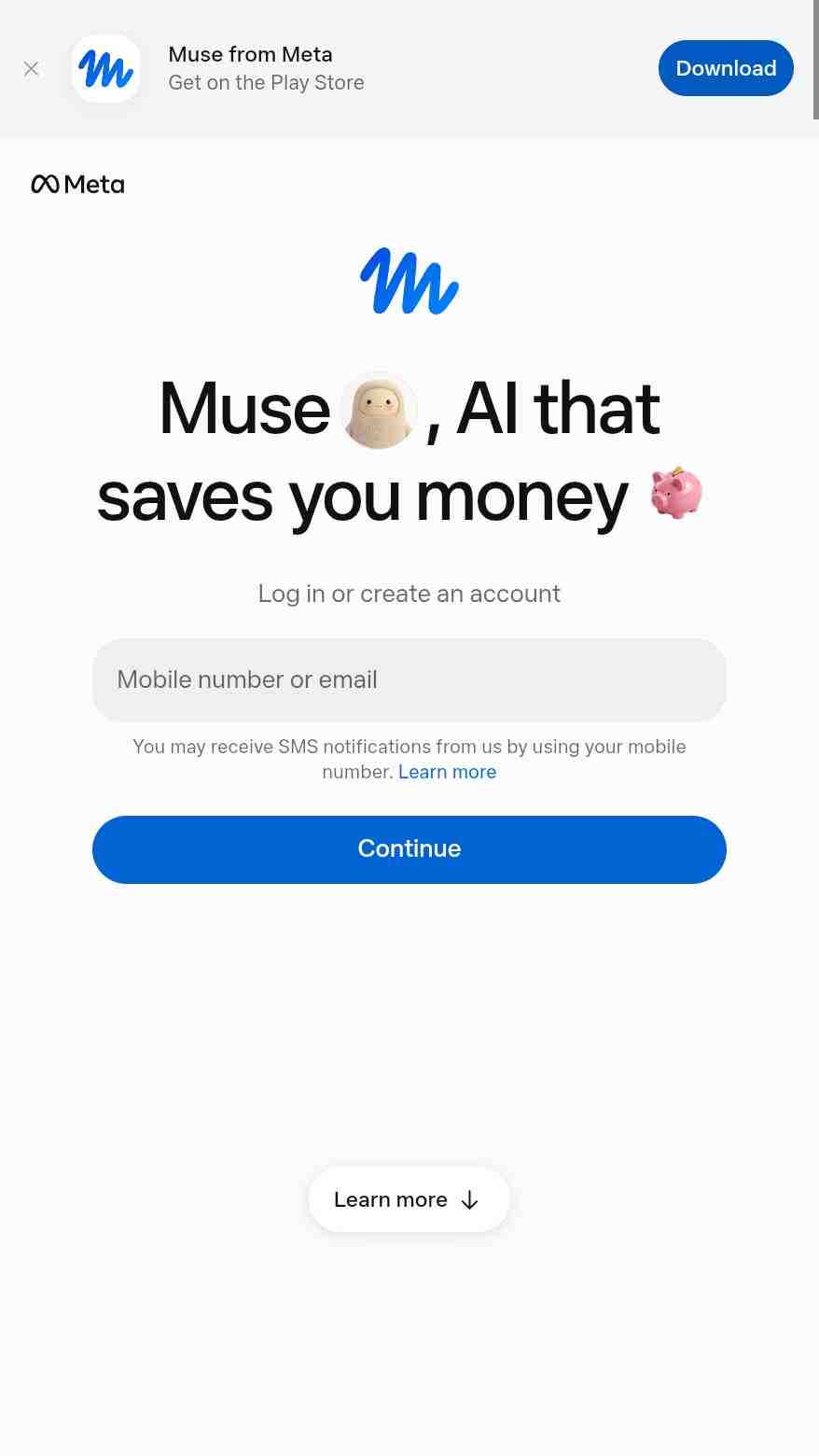
Check the address and select Continue. The screen serves both returning and new users; this record follows the email signup path.
On Enter your code, enter the six-digit code from the newest verification email and confirm as prompted. The recorded session timed out once and required a fresh code.
If the session has expired, return to the email step and request a new code. Continuing to retry the old one will not resolve an expired session. Keep verification codes out of screenshots, published documents, and long-lived notes.
Check the birthday and account confirmation
On What's your birthday?, set and check your actual birth month, day, and year.
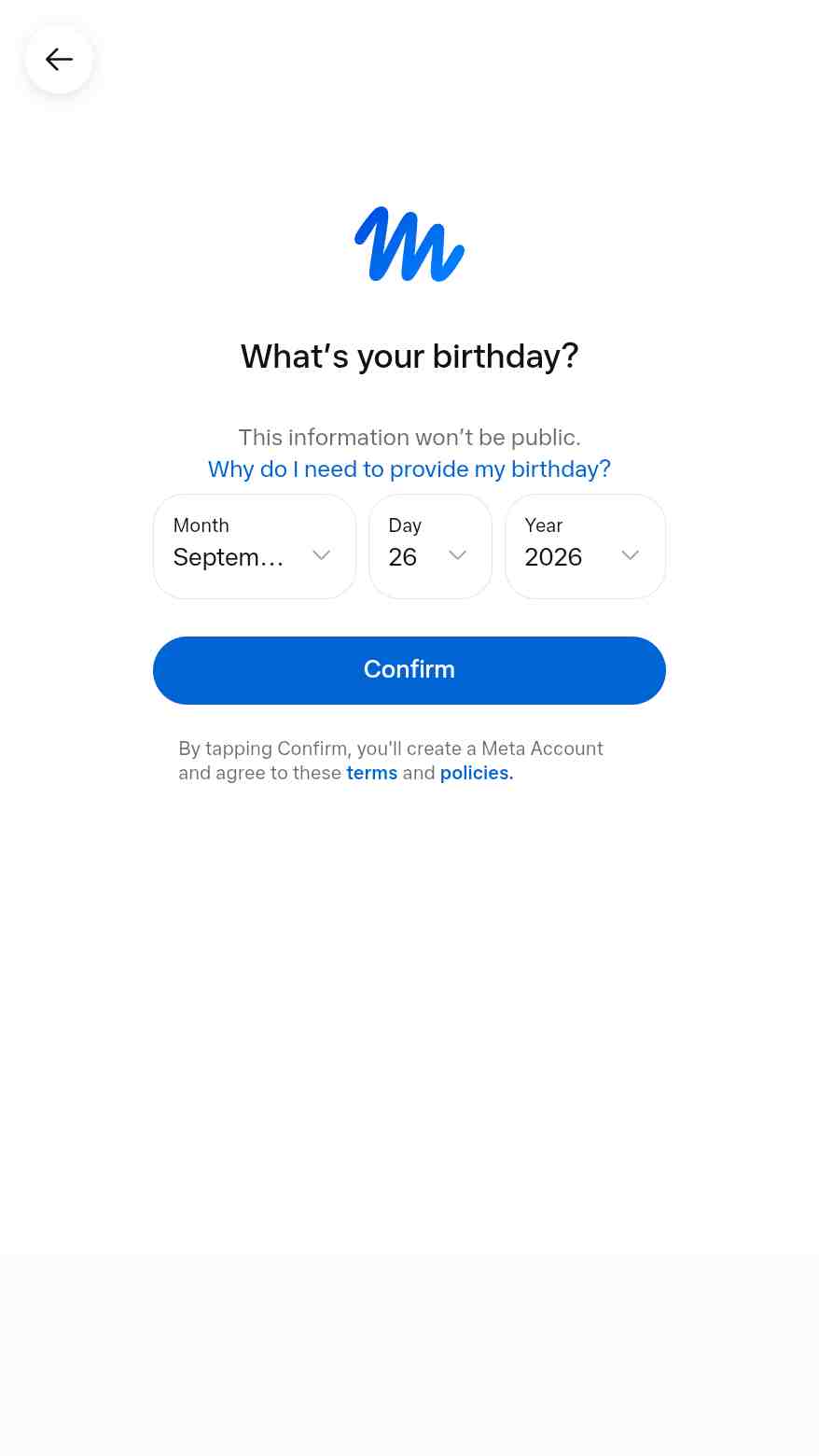
The screenshot shows the default date at capture time, not the birthday submitted during registration. Do not copy it.
The notice beneath Confirm says that proceeding creates a Meta account and accepts the linked terms and policies. Read the current links before deciding whether to submit. Stop here if you do not accept them.
Treat the invite code as part of the record
The source records the path Settings → General → Redeem invite code and the code QX3H0M. If that option is available in your account, follow the current prompts and check the actual redemption result.
The code has not been revalidated for this publication. The source supplies no expiry date, eligibility rules, or reward details. It also does not establish that every account must redeem a code.
Confirm that a chat actually returns a reply
After setup, send a simple question in the chat and wait for a response. The source reports a successful test. The existing conversation checked before publication also contained a basic arithmetic question and its reply.
That is evidence of a working basic conversation for that account at that time. It does not verify every agent feature, connected service, or future task.
If progress stops, check the stage you have reached:
- Code rejected or session expired: request a fresh code and use the newest email.
- Birthday still shows defaults: check all three date fields before submitting.
- Invite option missing or code rejected: follow the account's current interface and error message; the recorded code is no availability guarantee.
- Chat opens without a response: inspect the current status or error. Reaching the screen alone is not a successful chat test.
The original record contains no separate screenshots of code entry, redemption results, or the chat test. The two images above document only the screens they show.
Sources and entry points
- Airtap website and web dashboard
- Muse entry point
- The supplied registration record and its two original screenshots; consult the live signup page for the applicable terms
Latest from the blog
New research, comparisons, and workflow tips from the Vibe Coding Tools team.
A practical look at local LLMs and agent workflows on a 32GB Apple Silicon Mac mini, including Qwen3.6-35B-A3B, MLX, and tool-calling limits.
A practical review of Jev's typed decisions, state handling, current AI Gateway availability, and independent open source alternatives.
Learn how Pollo, Invideo and Artlist connect brand searches to useful tasks, with keyword evidence, landing-page comparisons and clear limits on SEO conclusions.