
How to use the ego browser: ego-lite features, Mac setup, and automation benefits
The ego browser, also known as ego-lite, lets you and an AI work on separate web tasks at the same time. You can keep browsing while your AI looks up sources or organizes information alongside you, without handing over your mouse and screen for the entire task.
If you have tried AI computer control, you may know the awkward moments: you cannot move the mouse while the agent is clicking, or it finally opens a site only to need another login. These small interruptions are the problems ego aims to address.
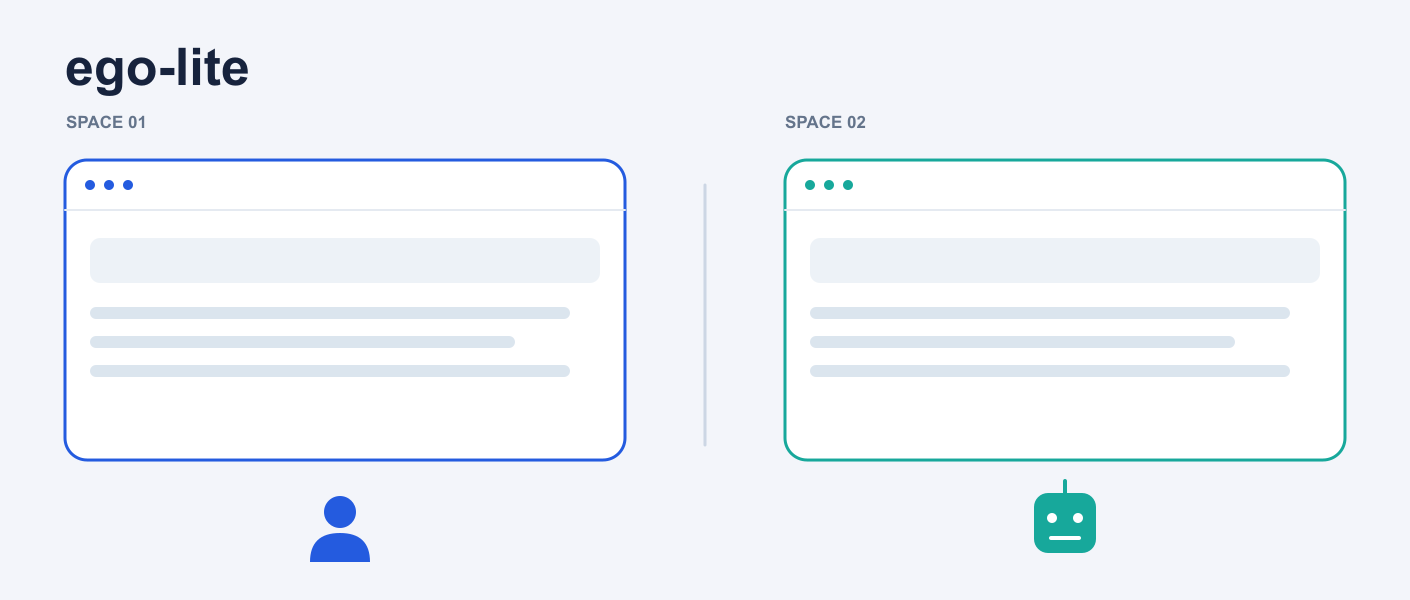
What makes the ego browser different?
First, a quick definition: an AI agent is an AI assistant that can call tools and carry out tasks you request. Here, that could be the assistant in Codex, Claude Code, or Cursor. The accompanying ego-browser “skill” is a set of instructions that teaches the assistant how to operate the browser.
ego-lite stands out in four main ways. Official overview
1. You and the AI have separate workspaces
ego-lite calls each workspace a Space. Think of them as separate desks inside the browser. You read an article at your desk; the AI opens pages and gathers information at another. You do not have to share the same set of tabs.
This is particularly useful for longer tasks. While the AI collects product details from several websites, you can continue checking email or reading instead of watching every action.
2. It can reuse sites you are already signed into
During setup, you can choose to import Chrome bookmarks, extensions, and login sessions. Extensions are the small add-ons you install in your browser; importing sessions can spare you another round of signing in.
That gives the AI a chance to continue directly on pages that require your account, such as your content dashboard or account data, with less work setting up a separate browser environment.
3. You use the AI assistant you already have
You still give instructions in Codex, Claude Code, or Cursor, then let that assistant call the ego browser. Context you have already discussed can carry over to the web task.
For example, once you have explained which products to compare, ask the assistant to open their pages and fill in the missing details. You do not need to brief a second browser assistant from scratch. Any AI subscription or usage charges still depend on the service you use.
4. You can watch progress and step in
While the AI works, you can enter its Space to check progress. If a task needs a login, verification, or a human choice, switch over, handle it, and tell the assistant to continue. The arrangement works like a collaboration: delegate repetitive steps and take over when judgment is needed.
Getting started on Mac in five steps
The example below uses Mac and Codex. Have your usual AI assistant ready, then install the browser; you do not need to learn automation scripting first. Official quick start
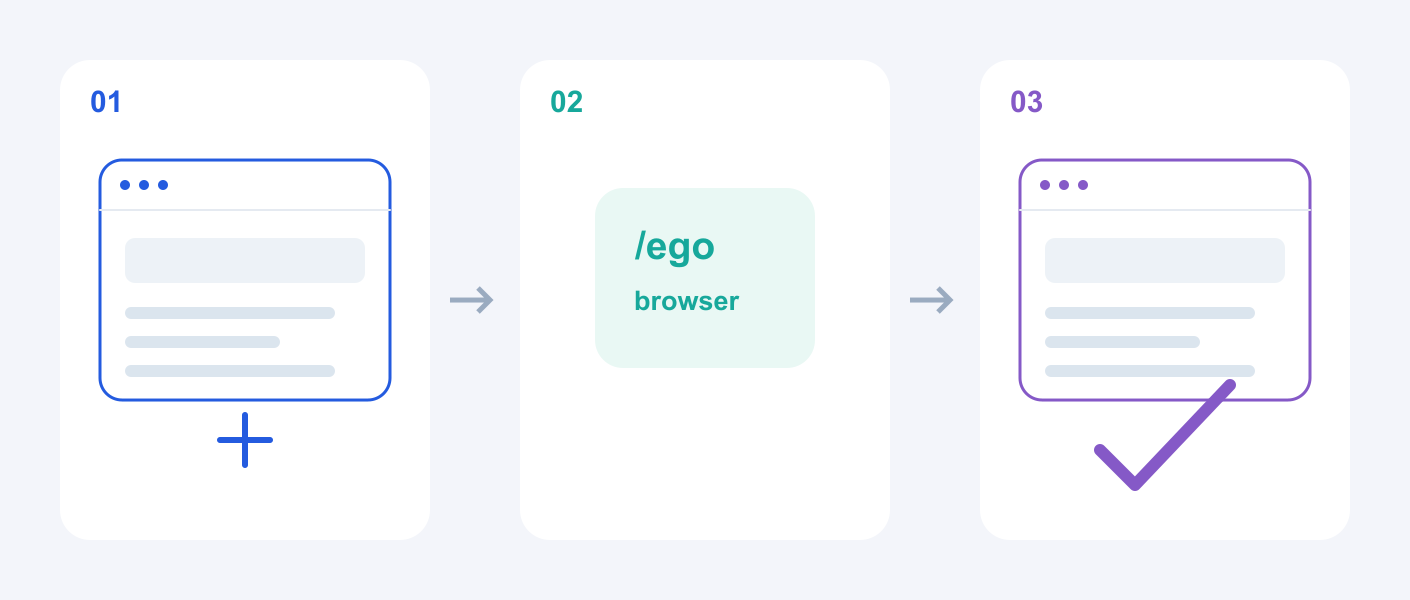
Step 1: Download and install
Open the official page linked above and select the Mac download. Open the downloaded installer, follow the installation instructions, launch ego-lite, and finish the initial setup.
This installs the actual browser. After setup, open any website to check that ordinary browsing works.
Step 2: Decide whether to import Chrome data
To keep using your bookmarks, extensions, and signed-in sites, choose the Chrome import and follow the system permission prompts. You can also skip importing and try a public website first.
After importing, open a site you use regularly. If it still needs a login, sign in manually as you would in any browser.
Step 3: Help your AI find ego-browser
Open Codex, type /ego in the prompt box, and select ego-browser. You can also type the full /ego-browser command. Browser installation and onboarding normally install the skill too. If it is missing from the list, close and reopen the assistant, then try again.
Claude Code and Cursor have their own entry points. If you see a request for permission to run browser commands, grant the permissions needed for your task. Codex integration guide
Step 4: Start with one small task
You do not need a complicated workflow for your first attempt. Copy this prompt to have the assistant read a public page. This example asks for a Chinese summary:
使用 ego-browser,打开 GitHub 上的 citrolabs/ego-lite 项目首页。
用中文整理它的三个主要功能,并附上来源链接。
Once that works, try comparing three product pages you supply, or finding the common themes in a few articles. A clear goal, scope, and desired output will usually get you a more useful answer than “research this for me.”
Step 5: Watch it work
Open the Space panel in the ego browser and find the workspace the AI is using. Check which pages it has opened, or return to your own Space and keep browsing.
If the assistant pauses for verification, switch to its Space, complete the check, and return to the conversation to say “continue.” Review its final answer and source links to make sure the result matches your request.
How does it compare with a regular browser or screenshot-based automation?
Computer use means an AI looks at screenshots and operates the computer through mouse and keyboard actions. ego also offers a way to read page structure and perform web actions directly. The AI can locate buttons, inputs, and text without having to infer positions from an image at every step. How ego operates
| What matters to you | Regular browser, operated manually | Screenshot-based automation | ego browser |
|---|---|---|---|
| Finding and organizing information | You work through pages yourself | AI operates from screen images | AI can read and organize page content |
| Continuing your own work | Manual browsing takes your time | Control of the same desktop may compete for your mouse | Web tasks mainly run in a separate Space |
| Tasks with multiple steps | You repeat clicks and copying | Usually cycles through screenshots, decisions, and clicks | Multiple steps can be combined for execution |
| Sites you are signed into | Available directly | Depends on which browser it controls | Existing sessions can be imported and reused |
| Main scope | You operate web pages | Web pages and other desktop apps | Designed around web tasks |
The most noticeable benefits are fewer interruptions and less repetitive setup. Giving the AI page content directly and grouping actions may also reduce waiting and tool-call overhead. Actual speed depends on the site and the task.
User accounts describe similar benefits. V2EX user xsir2020 reported fairly smooth automation after using it with Claude Code for several days. 小崔rel wrote that even when a task took over eight minutes, they could keep browsing instead of waiting throughout. V2EX user replies, 小崔rel’s experience
The limits are straightforward too: websites can still require verification, execution can stall, and you may need to take over. Check the page and the result before important actions.
Latest from the blog
New research, comparisons, and workflow tips from the Vibe Coding Tools team.
Understand DeepInfer through a kitchen analogy, explore possible user benefits, and find verified community learning and deployment projects.
Learn agent harness engineering with a curated beginner-to-advanced list of official tutorials, videos and repositories covering tools, context, permissions and evals.
Understand deepseek-v4-pro-qwen3.5-9b-uncensored-heretic: Qwen weights, claimed DeepSeek teacher data, ARA layers 9–23, and evaluation limits.