
How to Set Up Ko-fi Payments and Add Ko-fi to Your Website
How to Set Up Ko-fi Payments and Add Ko-fi to Your Website
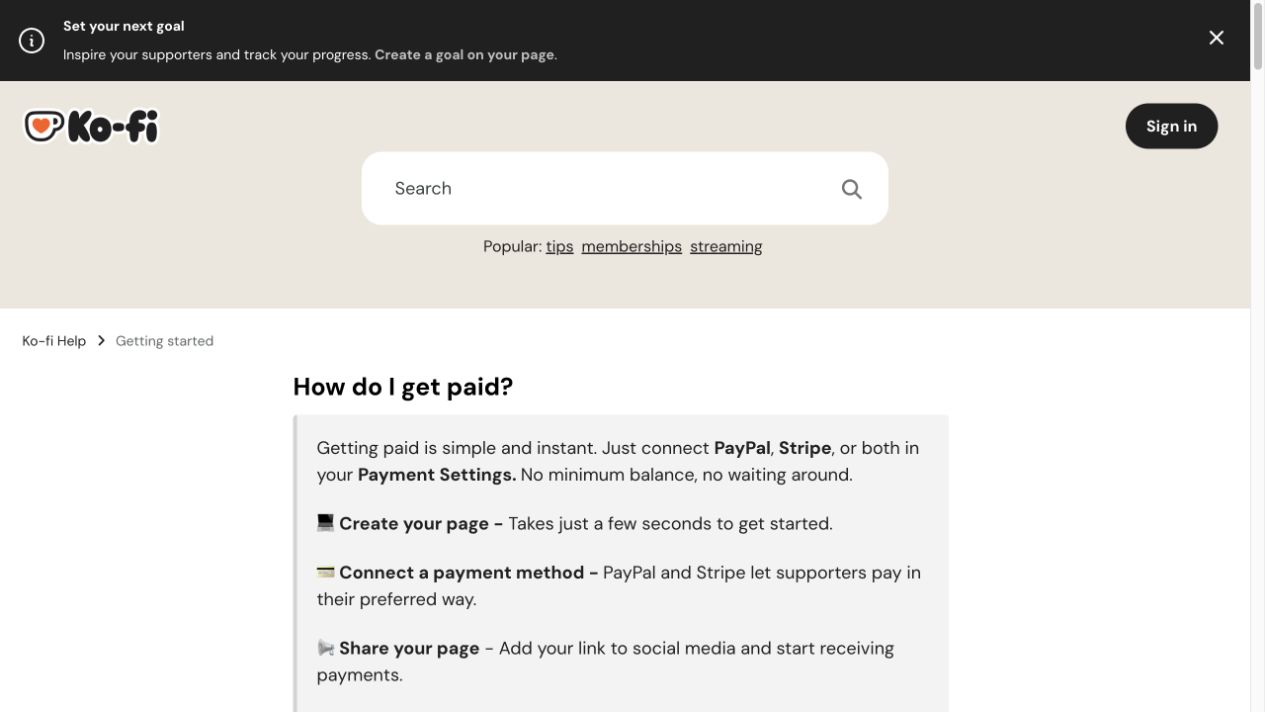
The simplest useful Ko-fi setup is a public creator page, one connected payment provider, and an ordinary link from your website. You do not need a payment API, webhook, or custom checkout.
Ko-fi uses direct payments: when someone supports you, the money goes to your connected PayPal or Stripe account rather than sitting in a Ko-fi balance for later withdrawal.
The fastest safe setup
Create and verify the account
        ↓
Finish the public page
        ↓
Connect PayPal, Stripe, or both
        ↓
Review fee mode, currency, and payment experience
        ↓
Add a direct link to the website
        ↓
Use a widget only if an on-page panel is worth the script
        ↓
Test logged out, on mobile, and with the real payment account
What to prepare
- An email address you intend to keep.
- A stable creator, product, or brand name.
- An available Ko-fi page name such as
ko-fi.com/yourname. - A PayPal or Stripe account, or the information needed to create one.
- Access to edit your website.
PayPal and Stripe may request a legal name, birth date, postal address, phone number, bank details, business description, tax information, or identity documents. The account owner should enter these details on the official provider page. Never put passwords, one-time codes, identity numbers, card data, or a full private address into a repository or tutorial screenshot.
Create a page people can trust
Sign up at Ko-fi, verify the email address, and complete the public profile:
- Choose a recognizable page name.
- Add a creator or brand image.
- Explain what you make and what support helps fund.
- Add the official site and relevant social links.
- Open the public page in a private browser window.
Remove placeholder copy, broken links, admin URLs, and personal contact details before sharing it. Ko-fi page creation is generally immediate; payment availability still depends on successfully connecting PayPal or Stripe and satisfying that provider's regional and account requirements.
Connect the payment account from Ko-fi
Open Settings → Payment and connect PayPal, Stripe, or both.
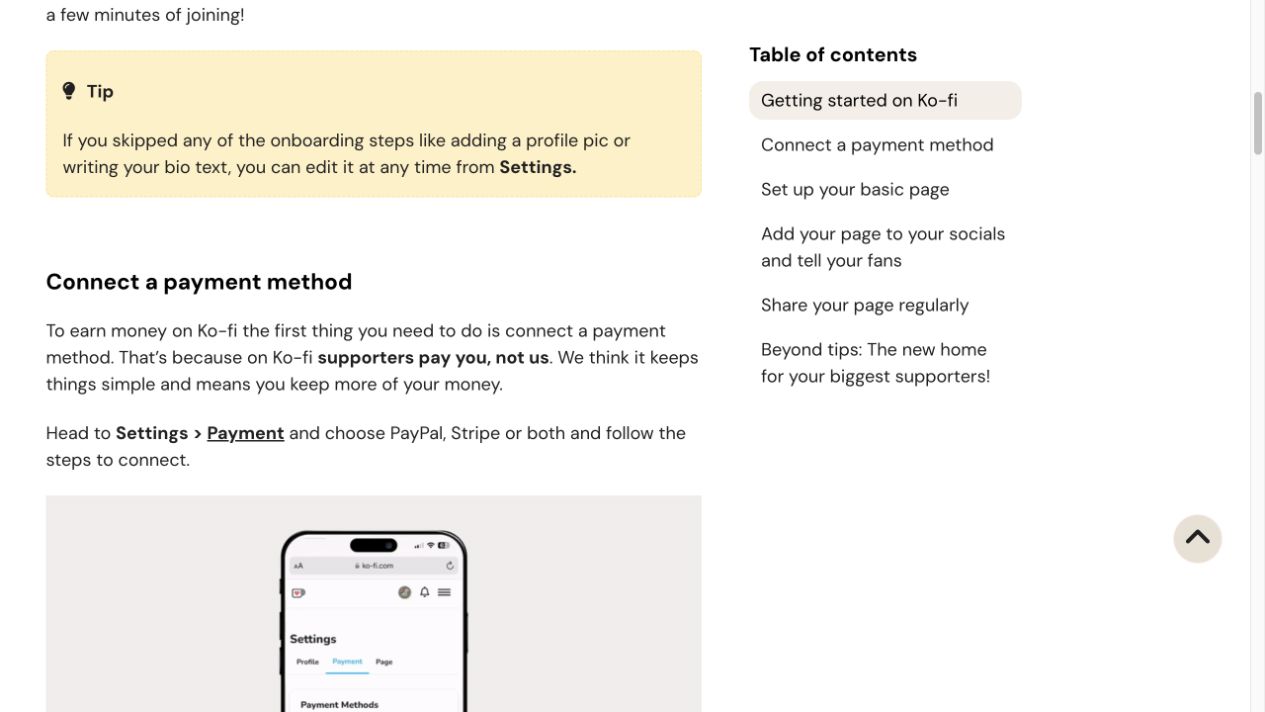
PayPal
- Select
Connecton the PayPal card. - Follow the official authorization flow opened by Ko-fi.
- Sign in to the account that should receive the money.
- Complete any identity, business, phone, or address steps PayPal requests.
- Return to Ko-fi and confirm that the card says
Connected.
Do not edit an authorization URL or switch its domain manually. Business-account requirements, receiving capability, and cross-border availability depend on the country and the PayPal account. For a mainland China account or any other region-specific case, follow the requirements shown for that exact account rather than an old screenshot.
If the flow ends without a Connected status, start it again from Ko-fi. Save the error, time, and browser details before contacting Ko-fi or PayPal support.
Stripe
- Select
Connecton the Stripe card. - Sign in or create an account on Stripe's page.
- Choose or create the business entity used for Ko-fi.
- Complete the requested identity, bank, business, and tax information.
- Return to Ko-fi and confirm
Connected.
Stripe availability for a creator is determined by the supported country and entity. A supporter being able to use a particular card or wallet does not mean every creator can open a Stripe account.
Understand the current fee modes
There are two separate costs: Ko-fi's service fee and the payment processor's transaction or currency-conversion fees.
Ko-fi's current help page describes these modes:
| Mode | One-time tips and goals | Monthly tips, memberships, shop, commissions |
|---|---|---|
| Free | 0% Ko-fi service fee | 5% Ko-fi service fee |
| Standard | 5% | 5% |
Both currently have no monthly subscription charge. New creators may start with the mode that unlocks all features and charges 5%; review Settings → Payment and opt out if the Free behavior is what you want. Normal PayPal or Stripe fees still apply and vary by account, location, currency, and payment method.
Choose a page currency close to the currency you receive most often when practical, because a conversion can add another cost.
Check the actual supporter experience
After the provider shows Connected, review:
- page currency;
- whether the page says coffee, tip, support, or another metaphor;
- minimum support amount;
- thank-you message;
- monthly support or membership settings;
- active Ko-fi fee mode.
The methods a supporter sees depend on creator settings, supporter location, currency, payment type, browser, and device. Connecting Stripe does not guarantee Apple Pay for every visitor, and PayPal does not expose the same local methods everywhere.
Start with a direct website link
<a
  href="https://ko-fi.com/yourname"
  target="_blank"
  rel="noopener noreferrer"
  aria-label="Support us on Ko-fi"
>
  ☕ Support us
</a>
Replace yourname with the real page name. This option:
- loads no Ko-fi script on your site;
- keeps your own button design;
- requires no API key, webhook, or backend;
- leaves the payment flow with Ko-fi and the provider.
Put one primary link at the end of an article, in the footer, near the product explanation, or in one navigation location. Repeating the same call to action in the header, drawer, body, and floating layer makes the page noisier without adding trust.
Use a widget when staying on the page matters
Ko-fi provides a Floating Button and a Tip Panel from its widget setup page.
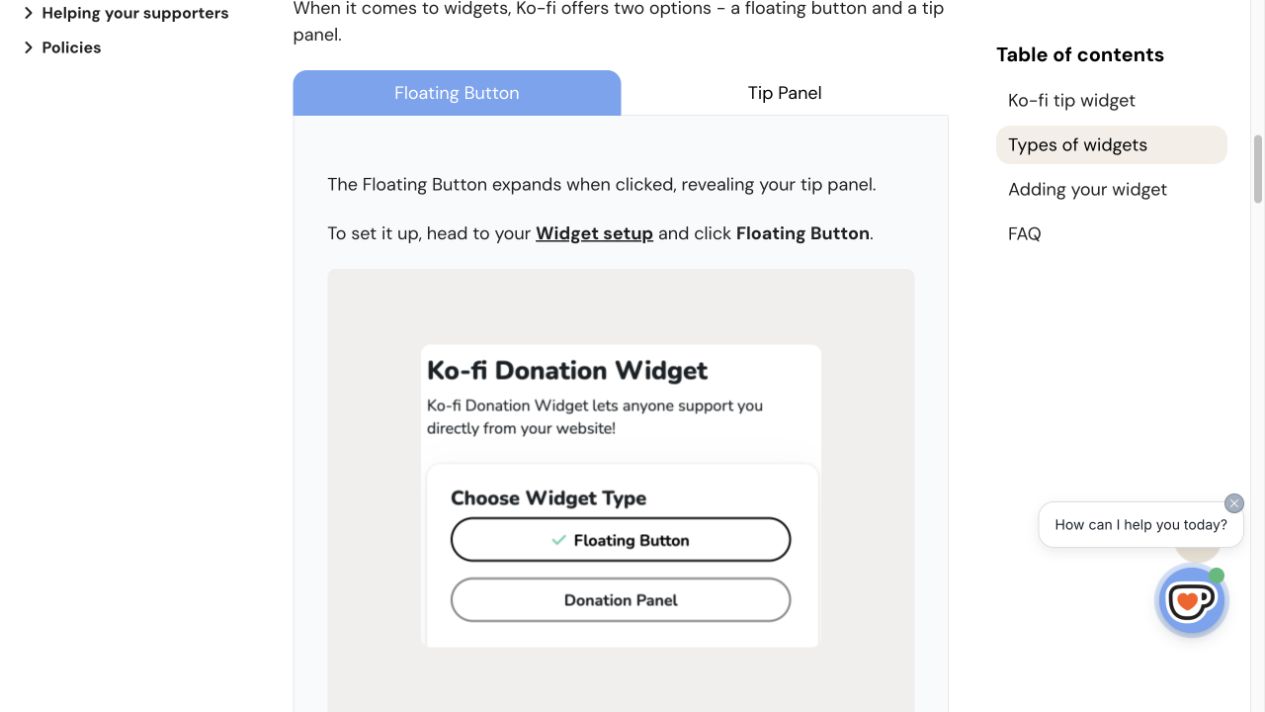
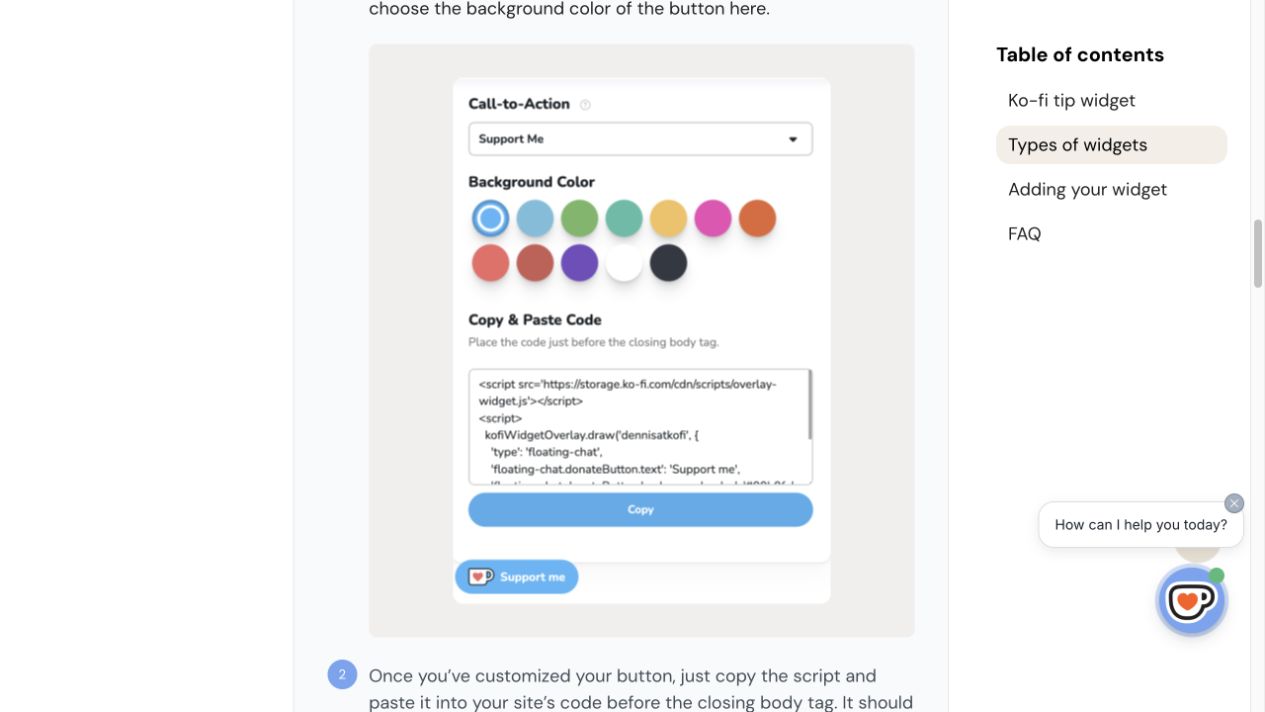
Floating Button
The button expands into the tip panel. Ko-fi instructs self-hosted sites to place the generated script before the closing </body> tag. Framework sites should load it once from the global layout or the framework's script component.
Tip Panel
The panel remains visible and fits a support page, sidebar, or footer. Paste Ko-fi's generated code into a location that permits embedded HTML.
| Requirement | Best option |
|---|---|
| Fastest setup and least maintenance | Direct link |
| No third-party script | Direct link |
| Full control over styling | Direct link |
| Expand support without leaving the page | Floating Button |
| Permanent support area | Tip Panel |
Ko-fi's current documentation says the widget supports one-time tips and memberships or monthly payments. It does not currently support Apple Pay or Google Pay inside the widget. Shop and Commission pages cannot be embedded there either; link directly to /shop or /commissions when needed.
Production checklist
- Open the website while logged out of Ko-fi.
- Confirm the link opens your public page rather than a management page.
- Verify that at least one payment route is visible.
- Check desktop and phone layouts for clipping and overlap.
- Keep visible text or an accurate
aria-labelfor accessibility. - For a widget, inspect script, Content Security Policy, and duplicate-load errors.
- Recheck currency, fee mode, and provider connection in Ko-fi.
- Let the payment-account owner decide whether to run a minimum real transaction; processing fees may apply.
Troubleshooting
The page exists but cannot receive money
At least one card under Settings → Payment must say Connected. A public Ko-fi page alone does not create a receiving account.
PayPal is signed in but Ko-fi is not connected
Signing in and authorizing Ko-fi are separate steps. Start with Ko-fi's Connect button and finish the partner authorization until Ko-fi shows Connected.
There is no Ko-fi withdrawal button
Direct payments go to PayPal or Stripe, so balances, settlement, and withdrawals live with that provider.
Apple Pay works on the page but not in the widget
That matches Ko-fi's current limitation. Payment pages can show wallets when the conditions fit; the Tip Widget currently cannot use Apple Pay or Google Pay. Prefer the direct page link when those wallets matter.
The button appears but does nothing
For a direct link, verify the complete https://ko-fi.com/yourname URL. For a widget, load the script once and check that the site's Content Security Policy permits Ko-fi resources.
Official references
Latest from the blog
New research, comparisons, and workflow tips from the Vibe Coding Tools team.
A recorded Muse signup through Airtap, covering email codes, birthday confirmation, Meta account creation, and the limits of the invite-code and chat checks.
A practical look at local LLMs and agent workflows on a 32GB Apple Silicon Mac mini, including Qwen3.6-35B-A3B, MLX, and tool-calling limits.
A practical review of Jev's typed decisions, state handling, current AI Gateway availability, and independent open source alternatives.