
How to Get Detailed Monthly Search Volume in Google Keyword Planner
How to Get Detailed Monthly Search Volume in Google Keyword Planner
Hands-on test: August 20–24, 2026. The screenshots use the Chinese Google Ads interface, but the controls and campaign logic are the same in other locales.
Google Keyword Planner sometimes reports a wide band such as 1K–10K instead of a single rounded figure. If that is what your account shows, do not build a separate ad campaign for every keyword on your research list. First check the account, then—only if Google asks for campaign activity—run one small, relevant Search campaign for your own site and use Keyword Planner separately for research.
What this workflow can and cannot do
Three numbers are easy to confuse:
| Metric | Where it appears | What it measures |
|---|---|---|
| Average monthly searches | Keyword Planner | Historical keyword demand for the selected market and network |
| Impressions, clicks, cost | Campaign reports | What happened to your ads in the auction |
| Visits and conversions | Analytics or conversion reports | What visitors did after clicking |
Campaign impressions are not keyword search volume. Website visits are not search volume either.
Google officially describes average monthly searches as a rounded historical metric based on the selected date range, location, and Search Network. It does not publish a universal spend amount or guaranteed waiting period that unlocks more granular figures. The 24–72 hour check in this guide is an observation window, not a promised threshold.
The shortest decision path
Check the keywords in Keyword Planner
        ↓
Detailed figures already visible? ── yes ──→ Export the data and stop
        │
        no: only broad ranges
        ↓
Create one low-budget Search campaign for your real website
        ↓
Wait for review; monitor impressions, clicks, and cost
        ↓
No impressions: adjust one variable at a time
Some activity: leave the setup stable
        ↓
Check Keyword Planner again after 24–72 hours
        ↓
More detailed data appears → record it → pause the research campaign
1. Check Keyword Planner before spending anything
In Google Ads, open:
Tools → Planning → Keyword Planner → Get search volume and forecasts
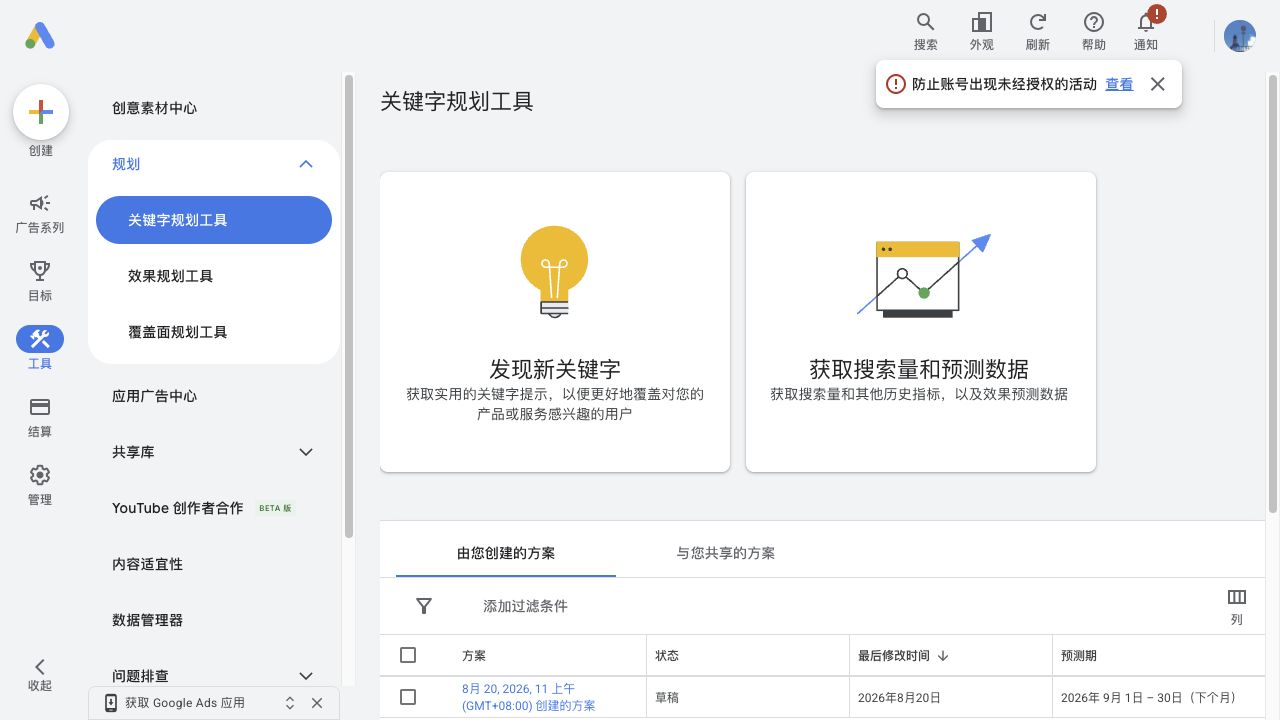
Paste a small sample of target keywords and set the location, language, Search Network, and date range that match your research market.
- If you see values such as
1,900or6,600, collect the data. You do not need a research campaign. - If you see bands such as
1K–10Kand the interface asks you to run a campaign for more detailed statistics, continue with the controlled setup below. - If the market settings are wrong, fix them before drawing any conclusion.
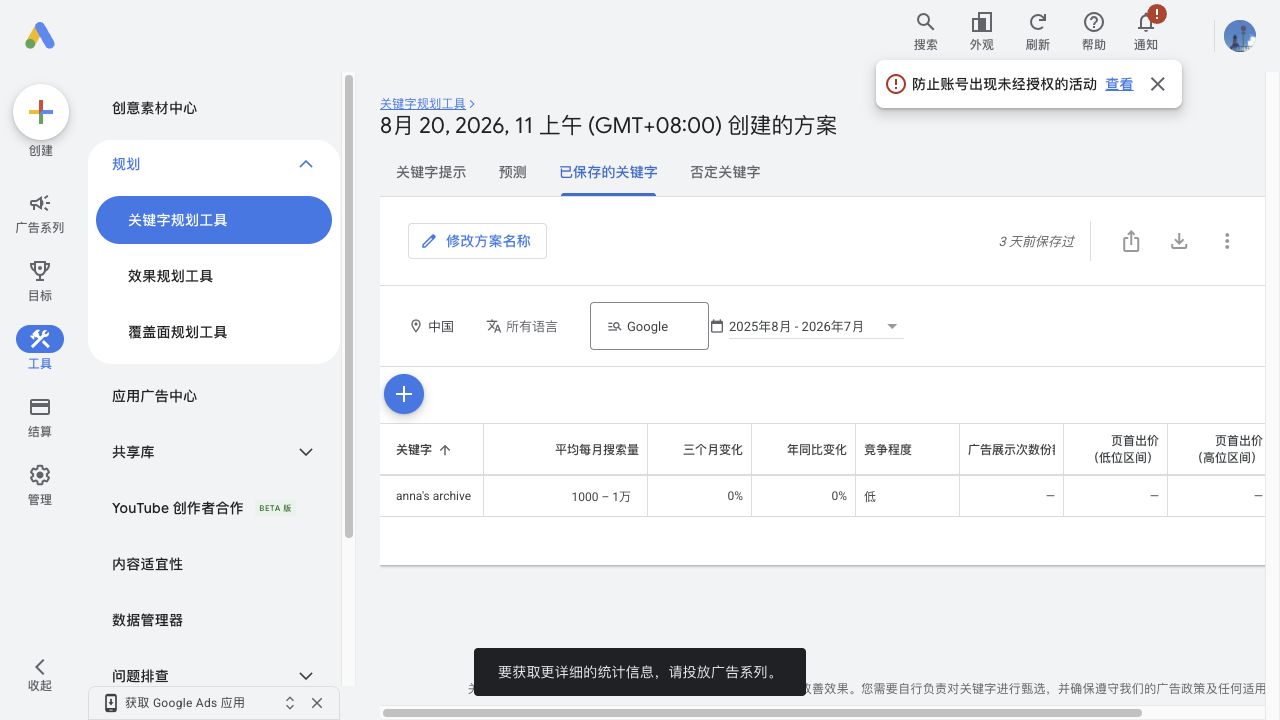
The screenshot uses China and all languages only to demonstrate the ranged-data state. For US English research, for example, use United States / English / Google. Save those settings alongside every volume figure so later comparisons remain meaningful.
2. Build one tightly controlled Search campaign
The ad must describe a page you own and that users can actually visit. The landing page, ad copy, and campaign keywords should share the same intent. Your future research keywords do not have to be added to this campaign.
A practical minimum setup is:
| Setting | Conservative choice |
|---|---|
| Campaign type | Search |
| Goal | Website traffic or page views |
| Networks | Google Search only |
| Search partners | Off |
| Display Network | Off |
| AI Max | Off for this controlled test |
| Automated URL or copy expansion | Off |
| Location and language | Match the market being researched |
| Bid strategy | Maximize clicks |
| Average daily budget | ¥5 in this test |
| Starting max CPC | ¥0.10 in this test |
Add a valid final URL, at least three accurate headlines, and two descriptions. Before publishing, verify that the review screen contains an actual ad rather than only a draft campaign.
Know the real budget boundary
An average daily budget is not a hard per-day cap. For most campaigns, Google says daily spend can reach up to twice the average daily budget, while the monthly spending limit is generally 30.4 × that budget.
For the configuration used here:
- Average daily budget: ¥5
- Possible daily charge: up to about ¥10
- Typical monthly spending limit: about ¥152
Check the billing method and available balance before enabling the campaign, raising the bid, or resuming it later. If the account uses prepaid funds, eligible clicks can deduct from that balance without another top-up prompt.
3. Keep campaign keywords separate from research keywords
The campaign exists to create genuine, policy-compliant activity around your site—not to buy traffic for every term you want to investigate.
For an AI developer-tools directory, a small starting set could be:
[vibe coding tools]
"vibe coding tools"
[ai coding tools]
"ai coding tools"
"best ai coding tools"
"ai developer tools"
Use exact and phrase match first. Broad match may pull in unrelated queries and consume the small budget before the account has produced useful activity.
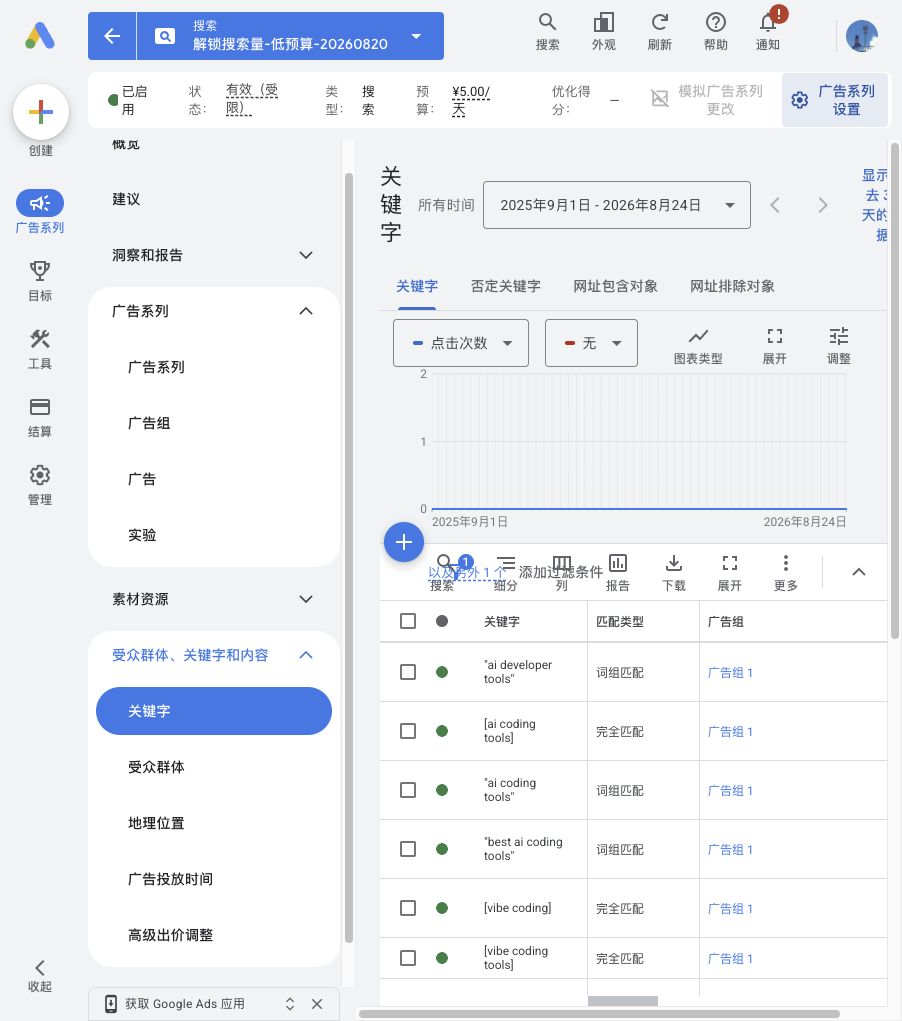
Start with one to three highly relevant terms. Add a few close variants only when review is complete, impressions remain at zero, and Google flags insufficient relevant keywords. If an ad or keyword is rejected, fix the policy or landing-page issue instead of trying to outbid it.
4. Raise CPC in small, observable steps
Open:
Campaigns → Settings → Bidding
Choose Clicks / Maximize clicks and set a maximum CPC bid limit.
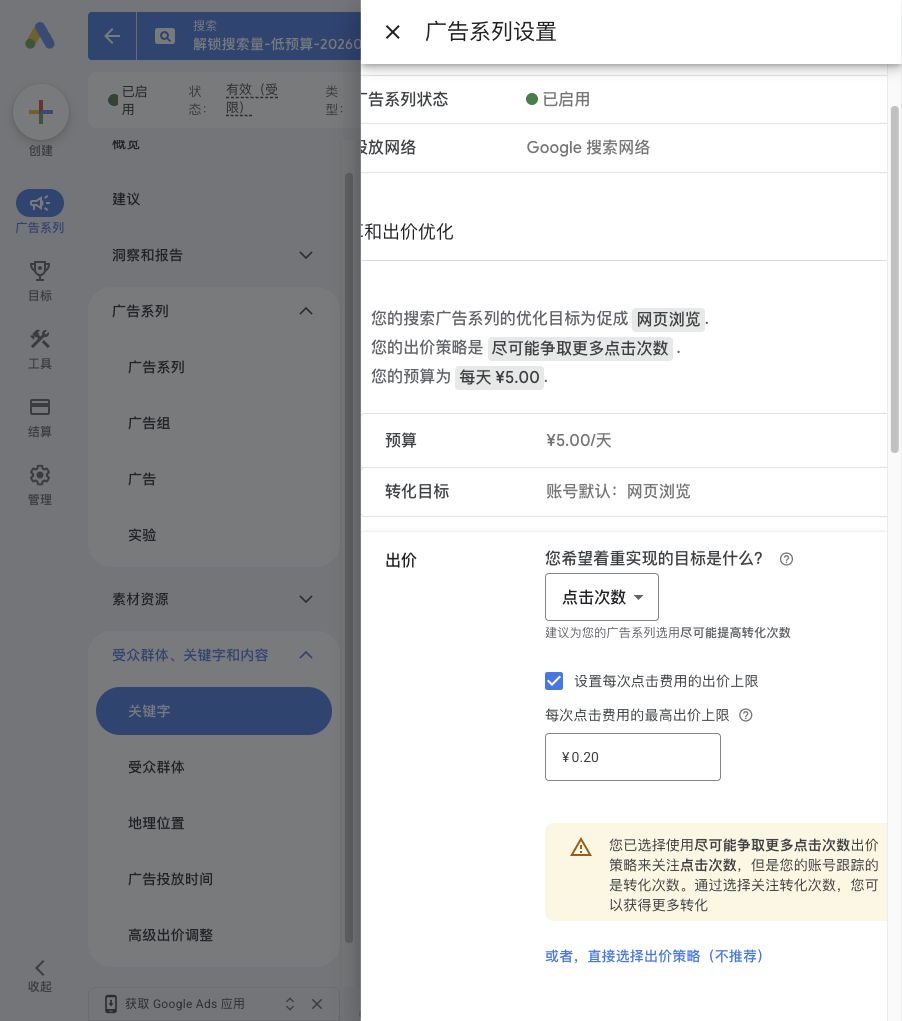
The test used this cautious sequence:
¥0.10 max CPC
   ↓ wait roughly 12 hours if impressions remain at zero
¥0.20
   ↓ wait again
¥0.30
   ↓ wait again
¥0.50
These are experiment values, not Google-recommended unlock levels. Change only one variable at a time. Raising both the daily budget and CPC together makes it impossible to tell what changed delivery.
If spend is still zero, check review status, policy warnings, keyword relevance, actual demand, and bid competitiveness before increasing the daily budget. More budget does not fix a campaign that cannot enter a useful auction.
5. Monitor delivery, not just campaign status
The campaign dashboard should be watched for:
- review and eligibility status;
- impressions and clicks;
- total cost and average CPC;
- keyword-level approval status.
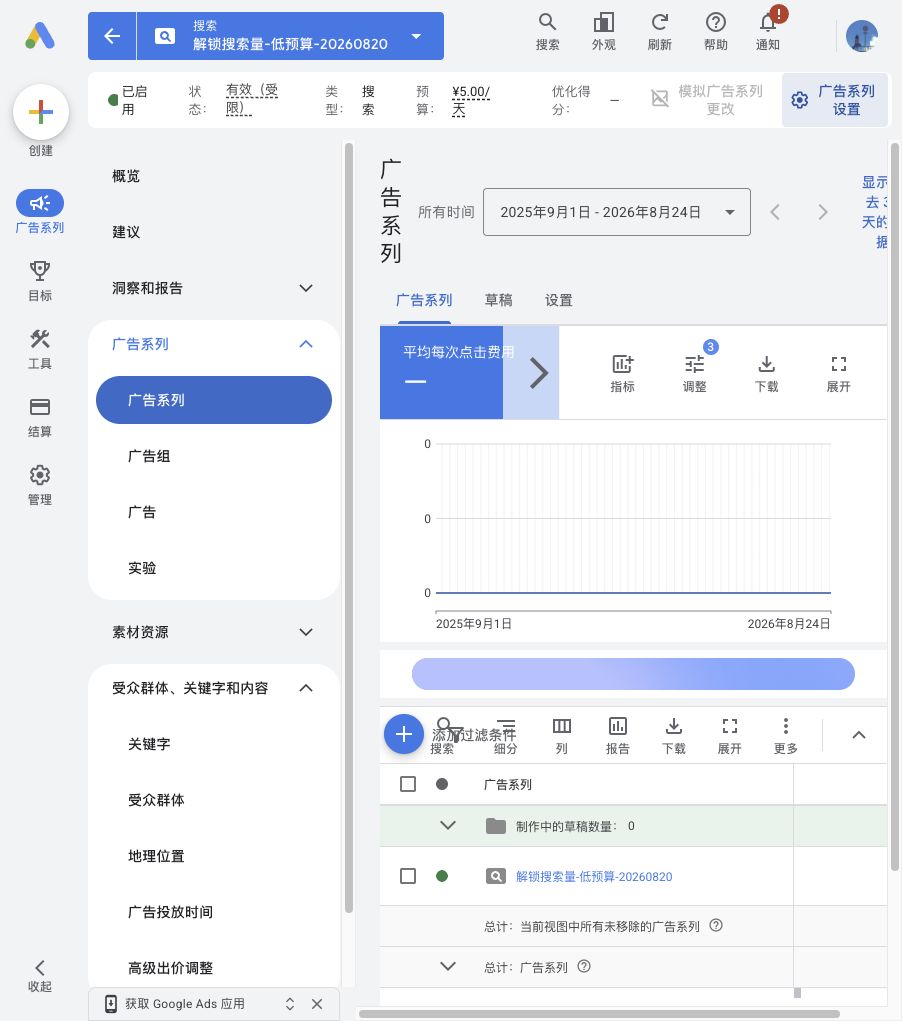
At the end of this test on August 24, the campaign was enabled but limited, with nine keywords, a ¥5 average daily budget, a max CPC raised from ¥0.10 to ¥0.20, and zero impressions, clicks, or cost. Keyword Planner still showed ranges. The correct next move was to wait for keyword review and the bid change to settle—not to stack more changes on top.
6. Recheck Keyword Planner and record the context
Once the campaign has impressions or cost, keep the configuration stable for 24–72 hours, then return to Get search volume and forecasts. Paste the research list in bulk and use the same market settings as before.
Store the result with enough context to reproduce it:
keyword: example keyword
monthly_search_volume: 6600
volume_source: Google Keyword Planner
metric_region: United States
metric_language: English
metric_network: Google
queried_at: 2026-08-24
account_volume_status: detailed
If Google still reports a band, store account_volume_status: ranged. Never treat the midpoint of 1K–10K as measured search volume.
7. Define the stop condition before launch
Pause the campaign as soon as either condition is met:
- Keyword Planner provides the detail you need; or
- The campaign reaches the total amount you approved in advance.
After pausing, refresh the campaign list and confirm that the status is actually Paused. Continue future keyword research in Keyword Planner; do not create a fresh campaign for every new list.
Common mistakes
- Treating ad impressions as monthly searches.
- Advertising every keyword on the research list.
- Leaving broad match, Search partners, Display Network, or automated expansion enabled in a tiny controlled test.
- Applying recommendations without rechecking the bid strategy and cost boundary.
- Raising the daily budget when the campaign has zero eligibility or zero impressions.
- Comparing volume figures collected with different locations, languages, networks, or dates.
- Assuming that a remaining prepaid balance means the campaign cannot spend.
- Expecting a particular bid or spend to guarantee detailed Keyword Planner data.
Official references
Latest from the blog
New research, comparisons, and workflow tips from the Vibe Coding Tools team.
A recorded Muse signup through Airtap, covering email codes, birthday confirmation, Meta account creation, and the limits of the invite-code and chat checks.
A practical look at local LLMs and agent workflows on a 32GB Apple Silicon Mac mini, including Qwen3.6-35B-A3B, MLX, and tool-calling limits.
A practical review of Jev's typed decisions, state handling, current AI Gateway availability, and independent open source alternatives.